


Savings Bond Calculator - Inventory Instructions
If you don't want to re-enter your bonds every time you use the Savings Bond Calculator, you may want to save your inventory. Just select the browser you're using below and follow the directions.
Microsoft Edge
- After entering your bonds, click the "Save" button in the results area.
- After the page reloads, click the three dots in the upper right corner of the browser window, then ‘More Tools’ in the drop-down menu. Then choose ‘Save page as’.
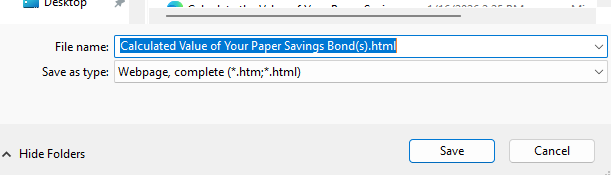
- In the window that pops up, choose a disk drive, folder, or directory where you want to save your bond list.
- In the box labeled 'File Name:' enter a name for your bond listing.
-
Make sure that the box labeled 'Save As Type' has "Web Page, complete" selected.
Now you'll be able to come back to the site and reprice your bonds at a later date. Just connect to the Internet, locate the bond list you saved on your computer, and open the file. The page will look just like it did when you saved your list. Click on the 'Return to Savings Bond Calculator' button at the top of the page, and your list will automatically update the values to the current date at that time. It will also allow you to add more bonds to your inventory, if necessary.
Mozilla Firefox
- After entering your bonds, click the "Save" button in the results area.
- After the page reloads, click the three lines in the upper right corner of the browser window, then 'Save Page As...' in the menu bar.
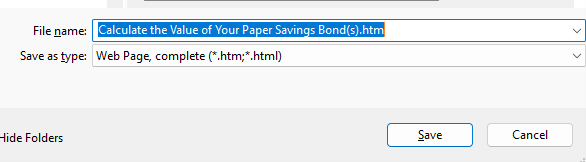
- In the window that pops up, choose a disk drive, folder, or directory where you want to save your bond list.
- In the box labeled 'File Name:' enter a name for your bond listing.
-
Make sure that the box labeled 'Save As Type' has "Web Page, complete" selected.
Now you'll be able to come back to the site and reprice your bonds at a later date. Just connect to the Internet, locate the bond list you saved on your computer, and open the file. The page will look just like it did when you saved your list. Click on the 'Return to Savings Bond Calculator' button at the top of the page, and your list will automatically update the values to the current date at that time. It will also allow you to add more bonds to your inventory, if necessary.
Google Chrome
- After entering your bonds, click the "Save" button in the results area.
- After the page reloads, click the three dots in the upper right corner of the browser window, then ‘Cast, save, and share’ in the drop-down menu. Then choose ‘Save page as’.
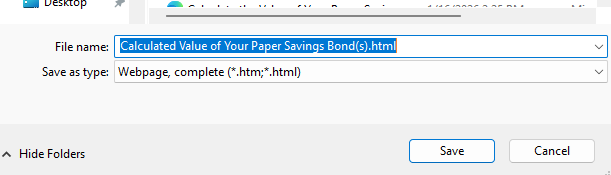
- In the window that pops up, choose a disk drive, folder, or directory where you want to save your bond list.
- In the box labeled 'File Name:' enter a name for your bond listing.
-
Make sure that the box labeled 'Save As Type' has "Web Page, complete" selected.
Now you'll be able to come back to the site and reprice your bonds at a later date. Just connect to the Internet, locate the bond list you saved on your computer, and open the file. The page will look just like it did when you saved your list. Click on the 'Return to Savings Bond Calculator' button at the top of the page, and your list will automatically update the values to the current date at that time. It will also allow you to add more bonds to your inventory, if necessary.